Horseshoe path shapes
The visible path determines the shape a Horseshoe follows. An arc is the normal circular form, but the same value/progress can also follow a line, rectangle, polygon, wave, spiral, or infinity path.
This page shows how to choose a path shape, use only part of a closed path, change its direction and top position, and keep related paths aligned.
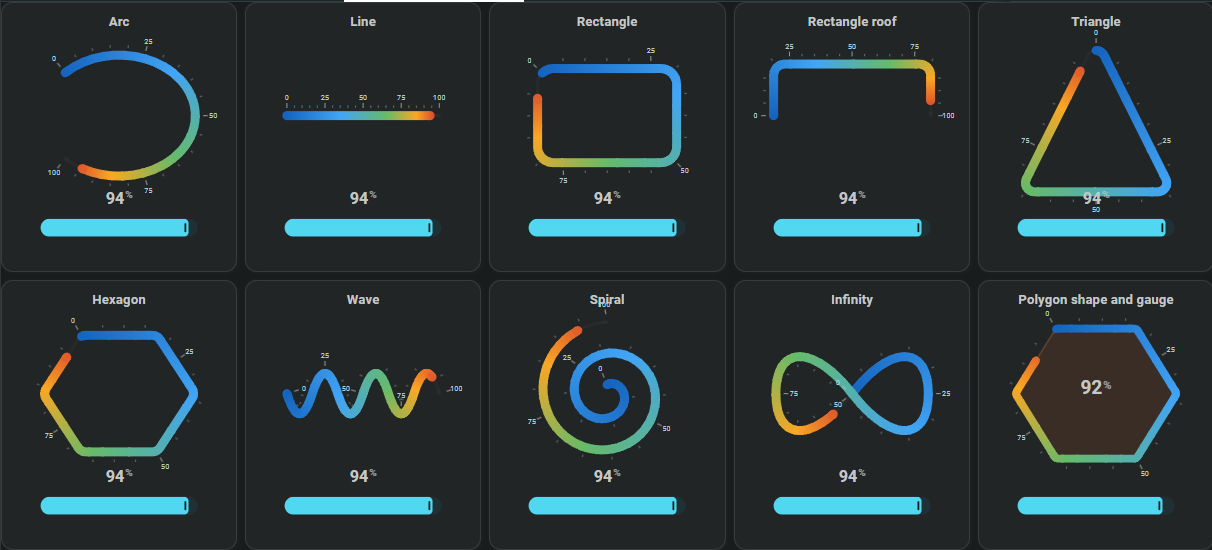
Choose a path
Set path.type to the shape you want:
arclinerectanglepolygonwavespiralinfinity
Use only part of a rectangle or polygon
Rectangle and polygon path positions are numbered clockwise. Use start and end to select the part of the path that should be used.
For a Rectangle:
0— top-left1— top-right2— bottom-right3— bottom-left4— back at the top-left
Decimal values choose a point along the following side.
Change the direction
Use direction to choose which way the path is followed from start to end:
Choose what faces upward
Use top on Rectangle/polygon paths when a different corner or side should face the top of the card.
top: 0puts corner0at the top.top: 0.5puts the middle of side0to1at the top.
Size and round a polygon
Use width and height to control the polygon footprint, and add a radius only when its corners should be softened.
width and height for the outside size and radius to round the corners; 0 keeps them sharp. Configure line, wave, spiral, and infinity paths
Each path type uses only the geometry that belongs to that shape. For example, a line uses length/angle, a wave uses wave count/amplitude, and a spiral uses its inner/outer radius, angular travel, and number of points.
Keep the shape settings together under path: so the complete path can be understood in one place.
Configuration options
Choose a path type first, then use only the geometry for that shape. This keeps each path locally understandable instead of mixing unrelated rectangle, polygon, wave, and spiral fields in one table.
Choose the path type
| Field | Type | Required | Default | Description |
|---|---|---|---|---|
type | arc, line, rectangle, polygon, wave, spiral, infinity | No | arc | Selects the visible path shape followed by the Horseshoe. |
Arc path
| Field | Type | Required | Default | Description |
|---|---|---|---|---|
radius | number | No | 45 | Radius when the arc is circular. |
radius_x | number | No | radius | Horizontal radius; set this separately for an elliptical arc. |
radius_y | number | No | radius | Vertical radius; set this separately for an elliptical arc. |
arc_degrees | number | No | 260 | Amount of the circle that is used. Positive/negative values choose the angular direction. |
start_angle | number | No | Calculated | Starting angle. When omitted, the card centers the default opening from arc_degrees. |
Line path
| Field | Type | Required | Default | Description |
|---|---|---|---|---|
length | number | No | 80 | Total length of the path. |
angle | number | No | 0 | Rotates the line in degrees; 0 is horizontal. |
Rectangle path
| Field | Type | Required | Default | Description |
|---|---|---|---|---|
width | number | No | 80 | Outside width of the rectangle path. |
height | number | No | 80 | Outside height of the rectangle path. |
radius | number / mapping | No | 0 | Rounds all or selected corners; 0 keeps sharp corners. |
start | number | No | 0 | Start position on the clockwise 0-to-4 rectangle numbering. |
end | number | No | 4 | End position on the same numbering. |
top | number | No | 0.5 | Path position that faces upward; 0.5 puts the middle of the top side at the top. |
direction | clockwise, counterclockwise | No | clockwise | clockwise follows increasing side positions; counterclockwise travels the opposite way from start to end without changing the position numbering. |
Polygon path
| Field | Type | Required | Default | Description |
|---|---|---|---|---|
sides | integer | Yes | — | Number of sides; must be 3 or greater. |
width | number | Yes | — | Outside width of the polygon path. |
height | number | Yes | — | Outside height of the polygon path. |
radius | number | No | 0 | Rounds the polygon corners; the maximum useful radius depends on its size and number of sides. |
start | number | No | 0 | Start position on the clockwise polygon numbering. |
end | number | No | sides | End position; the closing position equals the number of sides. |
top | number | No | Even sides: 0.5; odd sides: 0 | Chooses whether a side or corner normally faces upward. |
direction | clockwise, counterclockwise | No | clockwise | clockwise follows increasing side positions; counterclockwise travels the opposite way from start to end. |
Wave path
| Field | Type | Required | Default | Description |
|---|---|---|---|---|
length | number | No | 80 | Total length from the start to the end of the wave. |
angle | number | No | 0 | Rotates the complete wave; 0 is horizontal. |
waves | number | No | 3 | Number of complete wave cycles. |
amplitude | number | No | 8 | Distance the wave moves away from its center line. |
Spiral path
| Field | Type | Required | Default | Description |
|---|---|---|---|---|
radius_inner | number | No | 5 | Radius where the spiral starts. |
radius_outer | number | No | 40 | Radius reached at the outer end. |
start_angle | number | No | -90 | Direction of the first spiral point in degrees. |
degrees | number | No | 720 | Total angular travel; 720 is two full turns. |
points | integer | No | 48 | Number of generated points used to form the spiral; more points make the curve finer. |
Infinity path
| Field | Type | Required | Default | Description |
|---|---|---|---|---|
radius_x | number | No | 40 | Horizontal size of each side of the infinity path. |
radius_y | number | No | 25 | Vertical size of the infinity path. |